
MAC OS has always made it easy to capture a screen shot through the key board shortcuts. And if you are the webmaster or blogger and most of the time you need to capture the screenshot for your work. Then here we present you Best free Screen Capture Apps for MAC OS X. Which helps you to capture or print screen easily. All of these app are one of most used app in MAC os to capture the screen. Check out the list of 15 free Screen Capture Apps for MAC below:-
Windows User Read this:- 5 Free Screen Capture Apps For Windows

Read Also: Recover Deleted Files on Mac with Disk Drill
Read Also: Uninstall your MAC Apps easily with TrashMe
List of 15 Free Best Screen Capture Apps for MAC
1. Copernicus

Copernicus doesn’t just take screenshots, it’s a virtual photo gallery too. Take as many pictures as you like, then save them one at a time or all at once. Also allows you to export it to several different formats
2. Capture Me

One of the best screen capture app your MAC, so easy to take the screenshot of your MAC drag and re size the floating window to cover the area you want to capture. Then click in the window to capture the screenshot. With this free app you can resize the screen copy them into clipboard and save them into various formats.
3. Jing

With Jing you can Snap a picture of your screen or video. It also provides you the option to share those screen capture immediately.
4. Constrictor
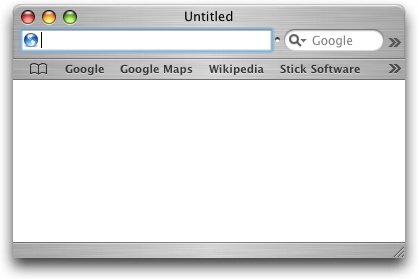
Constrictor is a screen snapshot utility for Mac OS X 10.4 and up (users on 10.3.x or earlier will want Constrictor 2.3 instead). It provides you with a moveable, resizeable frame that floats over all your other windows.

iShowU allows you to capture and record anything you can see on your screen, along with audio from a compatible source (like a microphone) as well as any audio from the mac itself.

Thanks a lot for the list. I use Skitch and SnapNDrag as they are free and would do the basic screen capturing. When I require advanced works for my tutorial works, I use Voila software. But yes it is not free but worth the money.
Great list, it’s a shame that we have to download separate apps for each feature. I tried Bruce’s suggestion. Downloaded the free trial of Voila mac screen capture and it is definitely great!
Thanks for the list of capture apps.
I had Capture Me on Snow Leopard, and it worked GREAT!
Now that I’ve upgraded to Lion, I (and several others) can’t get it to work.
Unfortunately, Ryan hasn’t been supporting CM since 21 September, 2008. See blog post:
CM is open source, so maybe someone else will take the initiative to get it working under Lion.